BlueMaple HXM Pitstop - Contact
By We Support on July 19, 2023
BeginnerContact
Contact represents a person.
A contact may be associated with a Customer, Sales Partner or a User.
You can also add contact as a standalone record without linking it to any of the entities listed above.
To access the Contact list, go to:
Type "Contact List" in search entry and add Contact
1. How to create a Contact
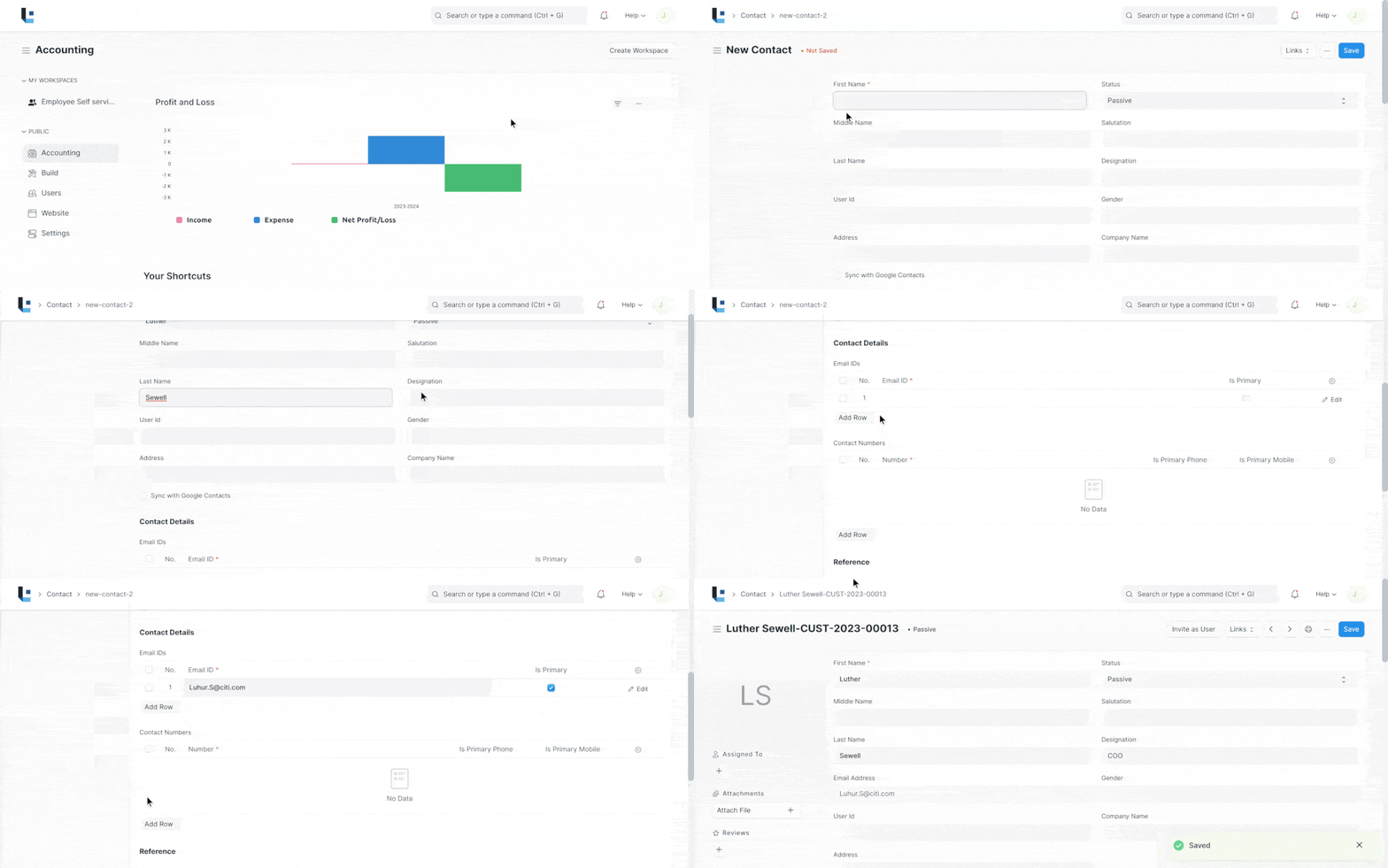
- Go to the Contact list and click on New.
- Enter First Name and Last Name.
- Choose the status if the contact is passive,open to contact or has replied.
- Enter Company Name(Optional)
- Enter Email, Mobile or Phone numbers. Mark them Primary as required
- Save.
You can also add a Contact from the Customer or Supplier record by clicking on “New Contact” button.
When you have multiple contacts against an entity like customer/supplier, you can check 'Is Primary Contact' to indicate the preferred contact. The primary contact will be chosen automatically in transactions like sales order and sales invoice.
2. Features
2.1 Link a Contact to Multiple Entities
A contact may be linked to multiple customers.
3.Related Topics
Was this article helpful?
No comments yet. Login to start a new discussion Start a new discussion